Settings
Users And Invitations
How to invite users, manage pending invitations, and update organization roles.
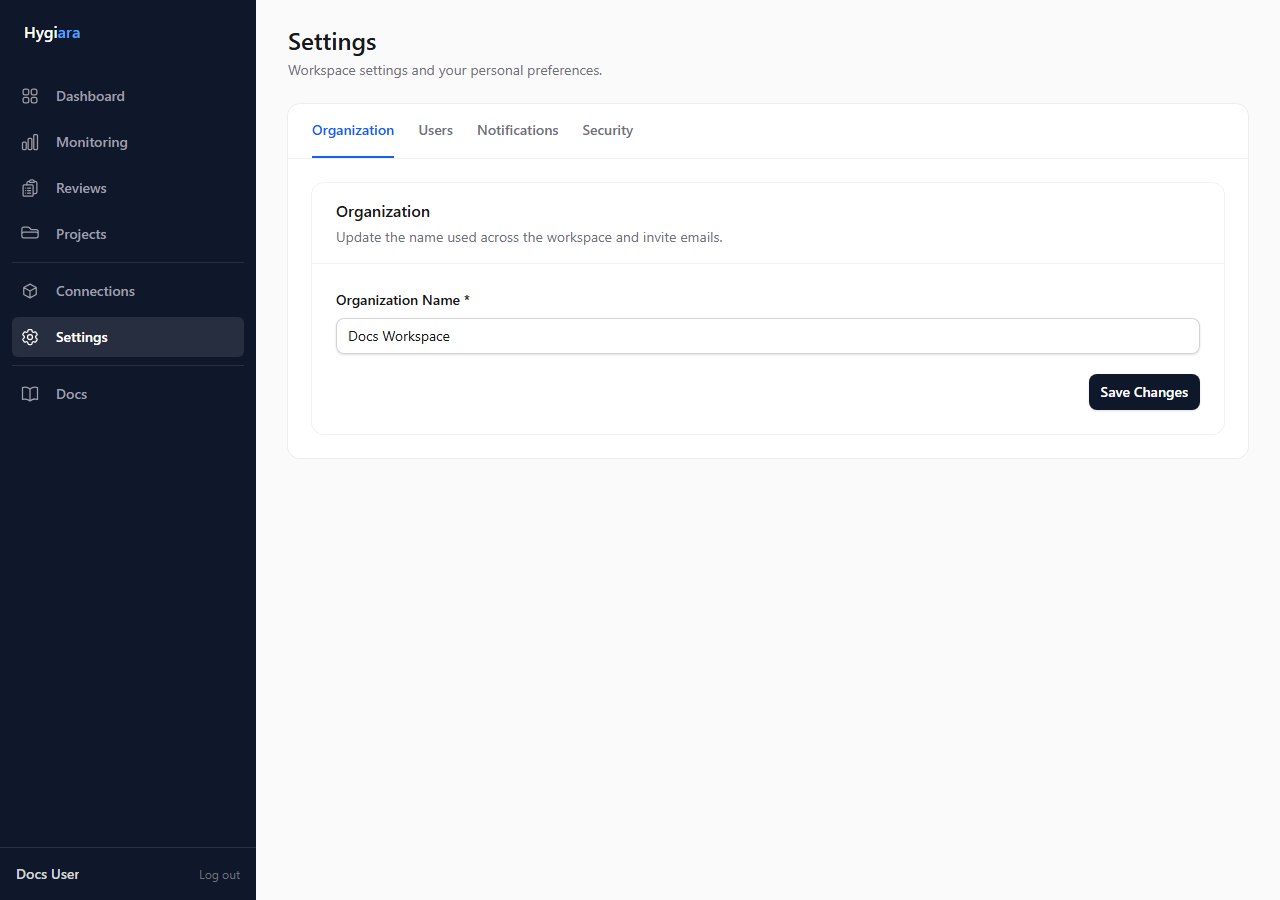
Use the users settings to invite teammates and manage organization membership.
Do this
- Open Settings.
- Go to the users or invitations area.
- Invite users by email.
- Assign the appropriate role.
- Resend or revoke pending invitations when needed.
Roles
Assign the least access the user needs for their work.
Admins can manage organization settings and access. Non-admin users should be used for normal review operation where possible.
Check the result
Pending invitations should appear until accepted. Accepted users should appear as organization members with the expected role.
Avoid
- leaving old invitations active
- giving admin access by default
- inviting users to the wrong organization