Documentation / Projects

Projects

Review Schedules

How to set up a recurring review schedule using a saved template.

What this page is for

This page explains how to set up a recurring schedule so a review runs automatically without someone remembering to queue it manually each time.

What a schedule is

A schedule attaches a cadence — weekly, monthly, quarterly — to a saved review template. At the scheduled time, Hygiara queues the review automatically using the settings from the template.

Schedules belong to a project. They appear in the Schedules tab on the project page.

When to use one

Create a schedule when:

  • a project should be reviewed on a regular basis
  • you want a baseline posture check to run automatically without manual effort
  • the same review shape has proven itself and is ready to automate

Prerequisites

You need a saved review template before you can create a schedule. If you have not done that yet, see Review Templates first.

How to create a schedule

  1. Open the project page.
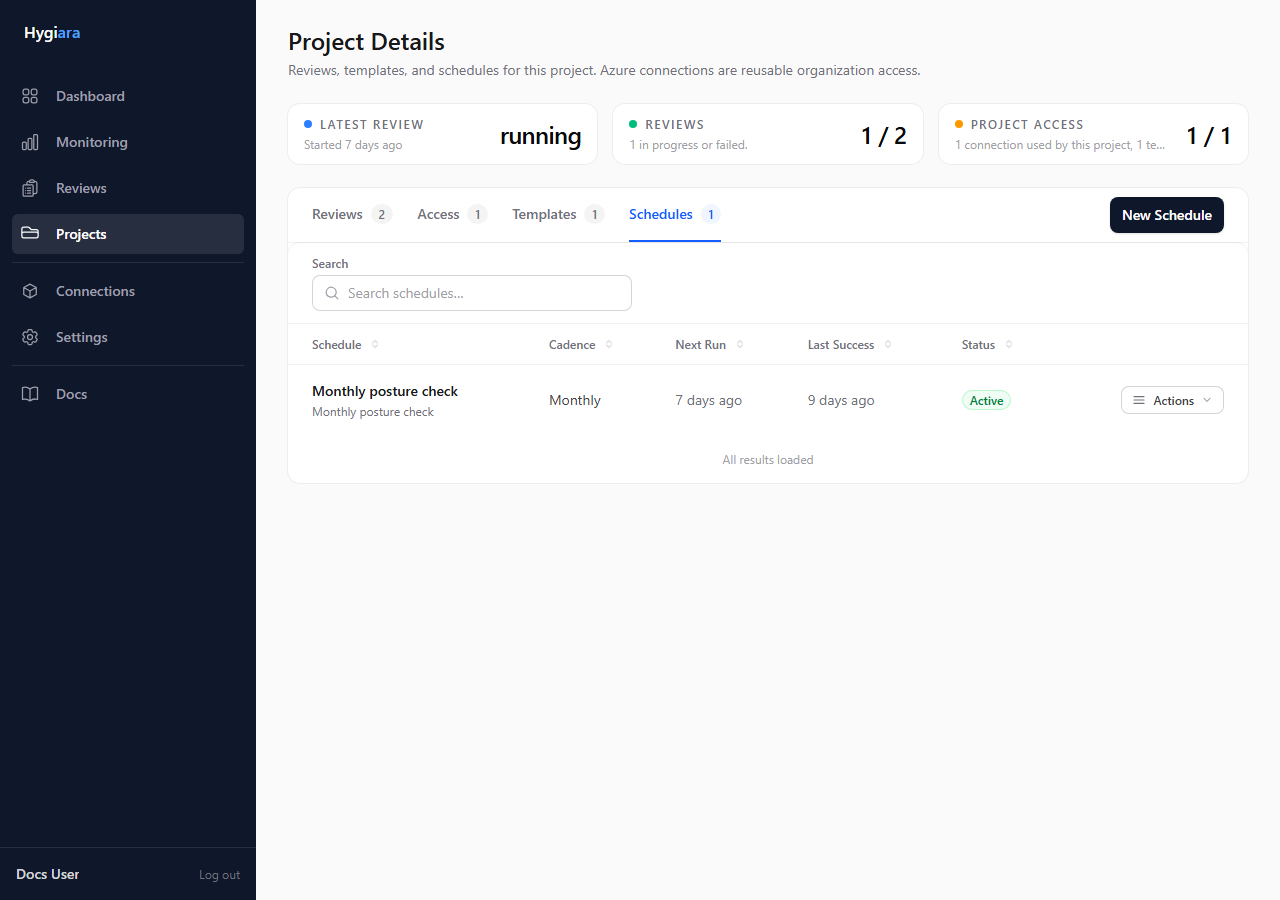
  2. Click the Schedules tab.

Schedules tab on the project page

  1. Click New Schedule.
  2. Give the schedule a name (for example: "Monthly posture check").
  3. Select the template the schedule should use.
  4. Choose the cadence — weekly, monthly, or quarterly.
  5. Save.

The schedule activates immediately. The Next run date shows when the first automatic review will be queued.

What happens when a schedule runs

At the scheduled time, Hygiara queues a new review using the settings from the linked template. The review appears in the project's Reviews tab and the global Reviews list just like any manually-queued review.

If the scheduled run fails (for example, because the saved connection is no longer valid), the schedule records the error and continues to try on future cadences. Fix the underlying connection issue to get it back on track.

Managing schedules

From the Schedules tab on the project page you can:

  • see the last run time and next run time for each schedule
  • pause a schedule (stops it from running without deleting it)
  • resume a paused schedule
  • edit the cadence or linked template
  • delete a schedule you no longer need

Common mistakes

  • Creating a schedule before the template scope is stable — prove it with a few manual runs first
  • Leaving a schedule active after a project is archived or the connection has changed
  • Expecting a failed scheduled run to retry immediately — it waits for the next cadence

Next step