Projects
Review Templates
How to save a review template, use it when creating a review, and manage templates from the project page.
A review template saves a proven review configuration so the same project can be reviewed again without rebuilding every option.
What a template stores
A template stores:
- project
- saved connection
- subscription scope
- WAF rule set
- Landing Zone option
- report-related options
Templates belong to one project.
Save a template
From a completed review
Use this when the review has already run successfully.
- Open the completed review.
- Click Save as Template in the review header.
- Name the template clearly.
- Save.
From the project page
- Open the project.
- Open Templates.
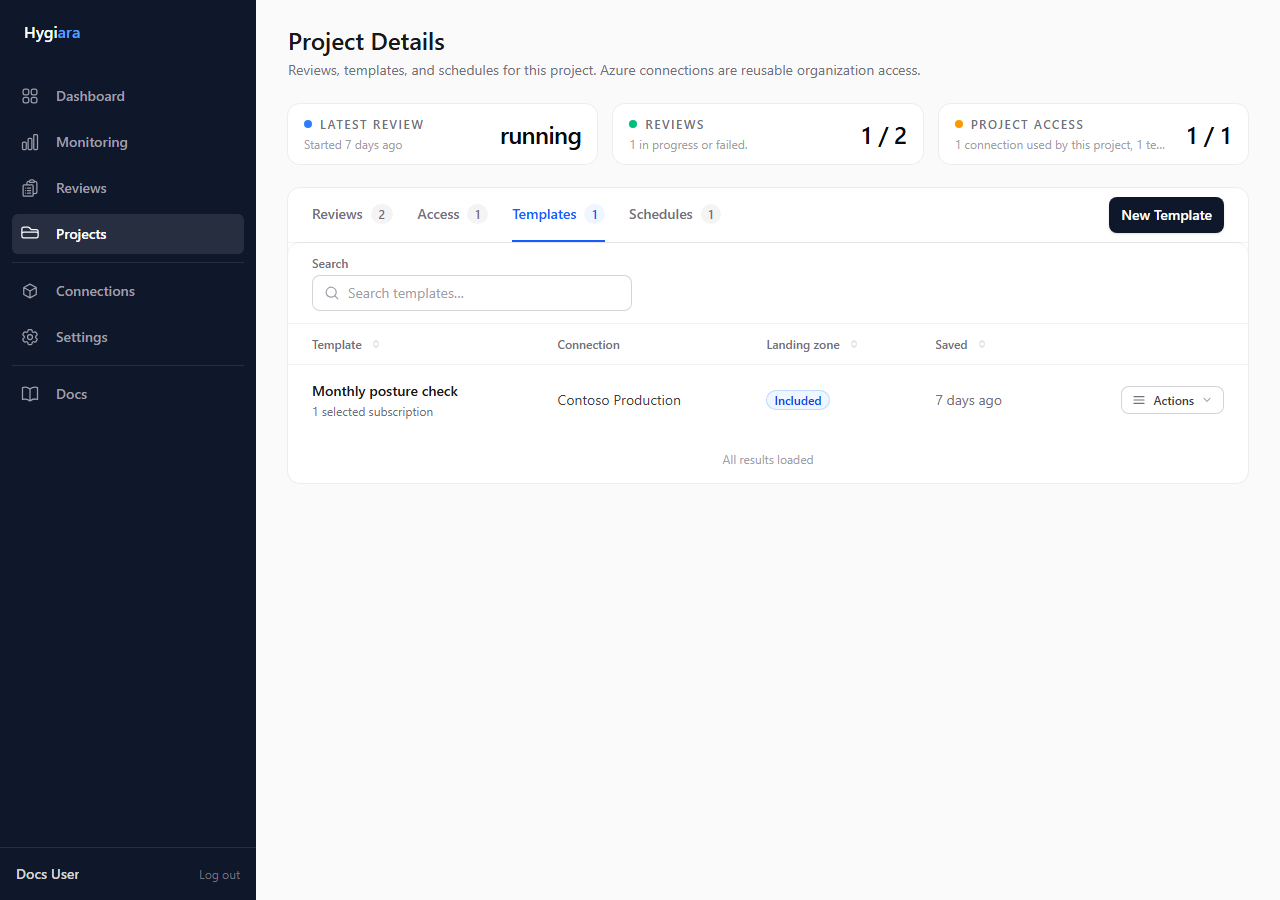
- Click New Template.
- Choose the saved connection and options.
- Save.
Templates created from the project page use all subscriptions visible to the selected connection at run time. Use a completed review if you need to preserve a fixed subset.
Use a template
- Open the New Review modal.
- Select the project.
- Choose Use Template when available.
- Select the template.
- Check the Confirm step.
- Queue the review.
Manage templates
From the Templates tab, you can rename, edit, or delete templates.
Avoid
- saving a template before the scope has been proven
- using unclear names like
Monthly - expecting a template to apply outside its project