Connections And Credentials
Azure Permissions
Azure roles Hygiara needs for architecture assessment and optional cost reporting, plus service principal setup.
Hygiara needs Reader access to assess the Azure subscriptions you select. To include actual cost totals and period trends in the application and Word report, the same identity also needs Cost Management Reader access.
What matters
Required for architecture assessment:
- App registration in Microsoft Entra ID
- Client secret on that app registration
- Reader role assigned to the service principal on each subscription in scope
Additional access for cost reporting:
- Cost Management Reader assigned to the same service principal on each subscription in scope
Cost access is best effort. A review can still complete without Cost Management Reader, but its cost section will be marked unavailable or partial. Hygiara collects historical ActualCost data; the figures are not a forecast or an estimate of potential savings.
For a one-off Microsoft sign-in, these roles must belong to the signed-in Azure identity. For a saved connection, assign them to the connection's service principal.
For Landing Zone assessment, give the service principal visibility into the management group hierarchy. Assign Reader at the root management group or the highest management group that covers the reviewed subscriptions.
Do this
1. Create an app registration
- Open the Azure portal.
- Go to Microsoft Entra ID.
- Open App registrations.
- Click New registration.
- Name it, for example
hygiara-reviewer. - Leave redirect URI blank.
- Click Register.
2. Copy IDs
On the app registration overview page, copy:
- Application (client) ID - enter this as Client ID
- Directory (tenant) ID - enter this as Tenant ID
3. Create a client secret
- Open Certificates & secrets.
- Click New client secret.
- Add a description and expiry.
- Click Add.
- Copy the secret Value immediately.
Azure only shows the secret value once.
4. Assign Reader
For subscription-level access:
- Open Subscriptions.
- Choose the subscription.
- Open Access control (IAM).
- Click Add role assignment.
- Select Reader.
- Select the app registration as the member.
- Click Review + assign.
For management-group access, do the same from Management groups. Use this when one connection should cover multiple subscriptions.
5. Assign Cost Management Reader
Repeat the role-assignment steps for Cost Management Reader:
- Open the subscription or covering management group.
- Open Access control (IAM).
- Click Add role assignment.
- Select Cost Management Reader.
- Select the same app registration used by the Hygiara connection.
- Click Review + assign.
Assign the role at a scope that covers every subscription in the review. Missing access to one subscription produces partial totals rather than combining incomplete data without a warning.
Enter it in Hygiara
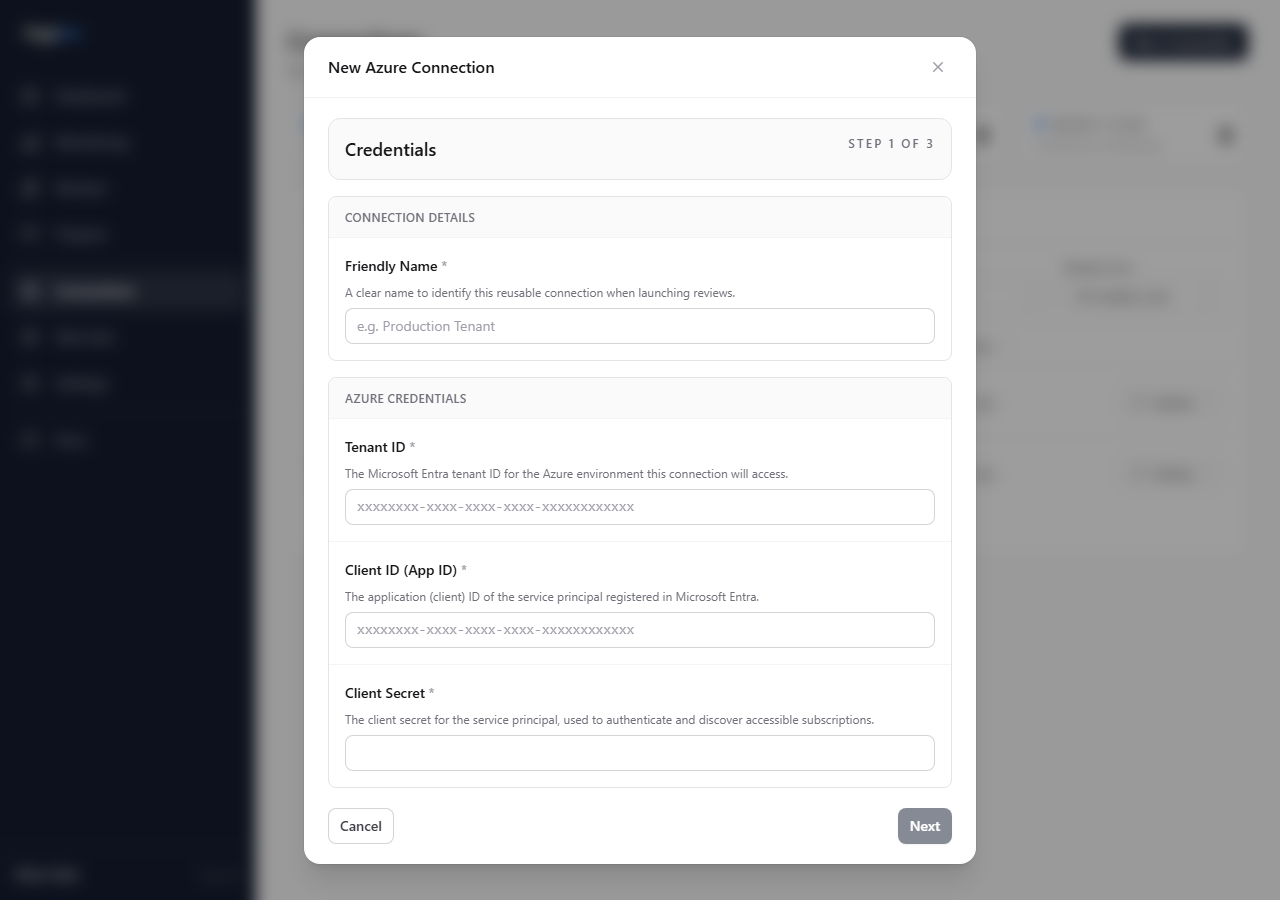
| Field | Value |
|---|---|
| Name | Friendly connection label |
| Tenant ID | Directory tenant ID |
| Client ID | Application client ID |
| Client Secret | Secret value copied from Azure |
Check the result
When the connection validates, Hygiara has authenticated and listed subscriptions through the Azure Management API. This confirms the connection, but the cost section is the definitive check that Cost Management Reader is available for every subscription in a review.
If validation fails, check:
- tenant ID and client ID
- expired or mistyped secret
- Reader role assignment
- Cost Management Reader role assignment when cost figures are unavailable
- RBAC propagation time after a new role assignment
Avoid
- copying the Object ID instead of the Application client ID
- assigning Reader to a different app registration
- expecting new RBAC assignments to appear instantly
- letting the client secret expire without updating Hygiara